Control Your Android Phone From Your Desktop With scrcpy
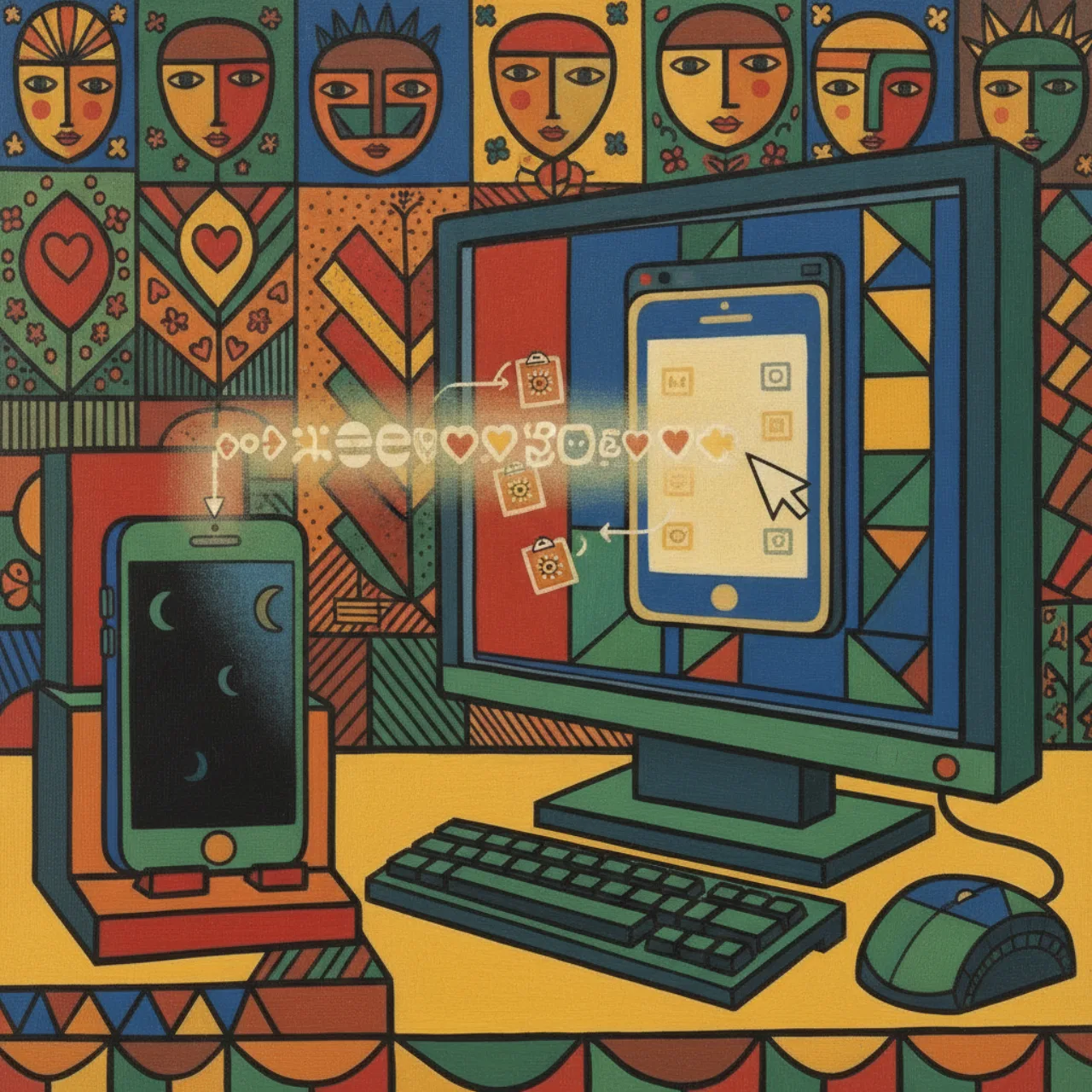
There's a phone on my desk that I keep picking up to do small, fiddly things — tap through a
settings menu, paste a long string into an app, check how a build looks on a real device, run a bit
of automation. Each time, I'm switching from a full keyboard and a big screen to a 6-inch pane of
glass I have to poke with one thumb. It's a small friction, but it's the kind that adds up over a day.
scrcpy removes it. It opens a live window of your Android phone on your desktop that you can
control — click with the mouse, type with the keyboard, copy-paste across the boundary — while the
phone just sits there, screen off if you like. No app gets installed on the phone, nothing is rooted,
and nothing leaves your network. This is what it is and the setup I landed on.
What scrcpy actually is
scrcpy (pronounced "screen copy") is a free, open-source tool
from Genymobile. You run it on your computer — Windows, macOS, or Linux — and it gives you a window
that mirrors your Android device and lets you control it. That's the whole pitch, and it's worth
saying what it is not:
- It's not a remote-access app you install on the phone. There's no APK to sideload, no account
to create, no background service phoning home. - It's not rooted-only. It works on any normal, unmodified phone.
- It's not a cloud service. The video and the input never leave the link between your computer and
your phone.
The one thing it leans on is ADB — the Android Debug Bridge, the same developer channel that ships
with Android. If you've ever run adb devices, you already have the foundation. scrcpy talks to the
phone over ADB, and that's the only thing the phone has to allow.
How it works, briefly
When you launch scrcpy, it does something clever: it pushes a small server to the phone over ADB,
runs it there just for the session, and tears it down when you quit — nothing is permanently
installed. That server captures the screen using Android's own built-in recording APIs and streams
the H.264 video back to your computer, where scrcpy decodes it and draws it in a window. In the other
direction, your mouse clicks and keystrokes are turned into input events and injected back into the
phone.
The payoff of that design is low latency — it feels responsive enough to actually work in, not
just watch — and zero footprint on the device. Two practical consequences fall out of it for
free: you can run it with the phone's own screen turned off (less battery, more privacy), and you
can paste between your computer and the phone, because scrcpy bridges the clipboards.
The simplest start: a USB cable
The fastest way to see it work is over USB. On the phone, you enable Developer options (tap the
build number seven times in About phone — the ritual every Android developer knows by heart), then
turn on USB debugging. Plug the phone in, and the first time a new computer connects, the phone
shows an "Allow USB debugging?" prompt — that's the authorization handshake, and you have to
accept it on the device, so the phone must be unlocked.
After that, it's one command:
scrcpy
A window opens with your phone in it. Click things. Type things. That's the entire experience.
The setup I actually use: no cable, over Wi-Fi
A cable is fine for a quick session, but I don't want my phone tethered to a machine all day. ADB has
a TCP/IP mode, and that's what I run. With the phone connected over USB once, you flip it into
network mode:
adb tcpip 5555
Now the phone is listening for ADB on port 5555 over Wi-Fi. Unplug the cable, find the phone's
local IP (it's in Settings → About → Status, something like 192.168.1.50), and connect to it from
any computer on the same network:
adb connect 192.168.1.50:5555
scrcpy
That's the moment it gets interesting. The phone can be plugged into a charger across the room, or
sitting on a shelf, and I drive it from whichever machine I'm at — because the control travels over
the network, not the cable. If you've read my post on building a
self-hosted SSH mesh, you can already see where
this goes: once every machine and the phone share a flat network, "the phone" becomes just another
address you can reach, and you choose which keyboard and screen you'd rather use to operate it.
The things that make it genuinely useful
A few features turn scrcpy from a neat demo into something I leave open:
- A real keyboard. Typing a password, a URL, or a long config value into a phone app with a
physical keyboard instead of the on-screen one is reason enough on its own. - Clipboard in both directions. Copy on the desktop, paste in a phone app — and the reverse.
- Drag-and-drop install. Drag an
.apkonto the window and it installs; drag any file and it
lands on the device. - Screen off, phone awake.
--turn-screen-offblanks the physical display while you keep working
in the mirror — handy for demos and for not broadcasting what you're doing to the room. - Record the session. scrcpy can save the stream to a file, which makes it a quick way to capture
a clean screen recording without the on-device recorder's overlays.
The rough edges I hit
No tool is real until something trips you up. The ones worth knowing in advance:
- Wi-Fi ADB doesn't survive a reboot. The
adb tcpip 5555mode is forgotten when the phone
restarts. You just re-arm it: plug in over USB once and run the command again. Annoying the first
time it catches you, trivial once you expect it. - One ADB server at a time per phone. ADB is a single bridge. If you've got an automation job
driving the phone from one machine, don't also try to mirror it from another in the same instant —
they'll fight over the device. Pick one driver. - Each new computer re-authorizes. ADB authorization is per-computer-key. The first time a
different machine connects, the phone shows the "Allow USB debugging?" prompt again — so the phone
has to be unlocked and in reach to accept it. Once trusted, it stays trusted. - The window needs a real desktop session. scrcpy draws an actual window, so it has to launch in
a logged-in graphical session — you can't fire it off through a headless remote shell and expect it
to appear on someone's screen. Obvious in hindsight, surprising the first time a remote launch
"succeeds" and shows nothing. - Distance costs you latency. On the same Wi-Fi it's snappy. Drive a phone across a slow or
far-away link and you'll feel the lag — perfectly fine for tapping through menus, less fine for
anything that needs split-second timing. Keep the controlling machine close to the phone when you
can.
Install tip. On Windows,
winget install Genymobile.scrcpyis the easy path, but if a package
manager misbehaves (it sometimes does over a non-interactive remote session), the portable zip
from the project's releases is bulletproof: it's self-contained, bundles its ownadb, needs no
admin rights, and you just runscrcpy.exefrom the folder. On macOS it'sbrew install scrcpy,
and on most Linux distros it's in the package manager or available as a Snap.
Why I keep it around
scrcpy is one of those tools that does exactly one thing and does it so cleanly that it disappears
into your workflow. It needs nothing installed on the phone, nothing rooted, and nothing in the
cloud — just the developer bridge that's already there. In exchange you get your phone as a window on
your desktop, driven by your real keyboard and mouse, with the physical device free to sit on a
charger.
If you do anything with Android beyond using it as a phone — testing, automation, demos, or just
hating the on-screen keyboard as much as I do — it's a ten-minute setup that you'll wonder how you
lived without. And if your machines already share a private network, it slots right in: the phone
stops being a thing you walk over to and pick up, and becomes just another screen you can reach from
wherever you're already sitting.